CCIT News and Notices

Fake Browser Update

Users should beware of a current “Update your Browser” type scam. In this scam, cybercriminals will display a full-screen web page or pop-up window with a fake notification saying that your browser is out of date and needs to be updated. The phony page will also include a button to download the supposedly needed update.

If a user clicks on that link, they will actually install malware on their device that the cybercriminals can use to steal data or take control of that device.

Two pop ups indicating that the user needs to update their web browser that look legitimate, but are fake.

When a legitimate web browser update is needed, this is typically done automatically when the browser is started. It is also important to remember to completely close and shut down your browser after each session, as well as reboot your computer on a regular basis. You can also verify if any browser updates are needed by checking the settings section in your browser.

Clemson users can contact the CCIT Support Center for additional help.

Stay Alert Against Email Scams As New Semester Begins

As the new semester begins, the Office of Information Security encourages all staff, faculty, and students to stay alert against email phishing scam attempts. Analyzing any email asking users to click a link or share personal information is important. Phishing attempts are often tricky because, at first glance, the cybercriminals may pose as a University source/department/office and appear real. Here are some helpful tips to remember before you click or share: 

  1. Stay vigilant and know that phishing email attempts are happening, especially as a new semester begins.
  2. Clemson University will never ask for your login credentials via email, phone, or any online form. Do not share passwords with anyone. 
  3. Forward any suspicious email to phishing@clemson.edu or use the “Report Phishing” button in Microsoft Outlook. 

If you have questions or want to learn more about reported cybersecurity alerts, visit CCIT’s Cybersecurity website

The my.Clemson Application Removed from App Stores; Replaced with Tigers Commute

On August 31, 2024, the my.Clemson mobile application will no longer receive support from CCIT or be available for download from the Apple App Store or Google Play. The my.Clemson website will remain functioning, providing useful tools like the Directory, Public Safety information, and redirects to other sources of information from Academics, Athletics, and more.  

For users who relied on my.Clemson for transit information, Parking and Transportation Services has recently rolled out their new solution, called Tigers Commute. This features a new Tigers Commute app, which offers up-to-the minute information on bus routes, electric charging stations and e-bike availability, ride sharing, and more. Students and employees are encouraged to utilize these new resources for mobile applications and transition away from my.Clemson.  

Forced Windows Update on August 16, 2024

Members of the Clemson University campus community should be aware of a forced Windows update occurring on August 16, 2024. Once prompted for update, users will have 24 hours to reboot their Windows 10 and up machines for the required safety update. Please adjust your work accordingly and continue to update your Clemson devices as required.

Important Updates to SmartSheet

Clemson University’s Procurement and Business Services informed Smartsheet on August 12, 2024, the University will no longer permit license purchases or renewals of Smartsheet due to Smartsheet’s inability to support accessibility as defined by the Americans with Disabilities Act (ADA). 

Clemson University strives to create an accessible environment for all its community. Therefore, it is essential any tools used to conduct business conform with ADA accessibility standards.  

Sunsetting Smartsheet at Clemson 

Sunsetting Smartsheet places Clemson on a path towards federal compliance with Title II of the ADA.  

Steps to Compliance: 

  • Beginning August 12, P-Cards may no longer be used to purchase licenses or renewals for Smartsheet products.  
  • Faculty and staff currently using the product must begin a sunsetting plan and navigate to other options.
    • If you need assistance with this process, faculty and staff are encouraged to reach out to their area’s IT Consultant. They can connect you with alternatives or help you in this transition.  

First-Year Laptop Set-Up Workshops to Help Students Prepare for a New Semester

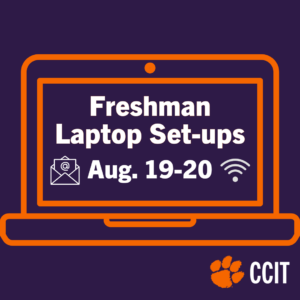
Teams of CCIT employees are excited to help new first-year students ensure their laptops are ready for a new semester and academic year. On Monday, August 19 and Tuesday, August 20, students can bring their laptops to workshop sessions for their colleges and types of laptops. These sessions will inform students about CCIT’s software offerings and cover basic set-up topics such as connecting to eduroam for wifi, accessing Adobe products, ensuring their email accounts are working, and getting answers to any other questions. Students must register in advance via this link to secure their spot and arrive on time at the start of each session.

The schedules are identical each day and are planned as follows: 

Monday, August 19 and Tuesday, August 20

Business + Education: 9:00 a.m. to 10:30 a.m.

  • Apple computers in Cooper 200b (second floor)
  • Windows computers in Lee Hall Room 111

CECAS: 11:00 a.m. to 12:30 p.m.

  • Apple computers in Cooper 200b (second floor)
  • Windows computers in Lee Hall Room 111

Science + BSHS: 1:00 p.m. to 2:30 p.m. 

  • Apple computers in Cooper 200b (second floor)
  • Windows computers in Lee Hall Room 111

CAH + CAC + Forestry: 3:00 p.m. to 4:30 p.m.

  • Apple computers in Cooper 200b (second floor)
  • Windows computers in Lee Hall Room 111

“Do I Keep My Email?” and Other Tech Questions from Graduating Tigers

Graduation is an exciting time for every Tiger, but it unfortunately does mean a change to some of the software and services you’ve grown accustomed to during your time at Clemson. Luckily, with a few minutes of review, you can prepare your technology and data for graduation.

Frequently Asked Questions

Do I keep my Clemson Google account?

Graduates will have access to their Clemson Google account for one year following graduation. Please note that forwarding of your @clemson.edu email address will cease soon after your username is deactivated. We suggest updating your contacts or accounts to use a different email address so you don’t lose anything when your account is closed.

We recommend you move your Google Drive files to another cloud storage service or personal Google Drive account in preparation for the closure of your Clemson Google account after one year. You can use Google Takeout (takeout.google.com) to export your Google account data if you wish to store it elsewhere, or you can use the transfer service (takeout.google.com/transfer) if you plan to move it to another Google account.

What about the files in my other cloud storage accounts?

  • Your access to Box and OneDrive will end one year after graduation. We recommend that you download your files from those accounts as soon as possible, so you don’t forget about them. 
  • Any files you create and manage in CUapps (Citrix) are stored on your U: drive (also called Home Directory). You will have access to your U: drive for one year after graduation, so be sure to download those files before you lose them. The CCIT Knowledge Base contains instructions to access your U: drive for macOS and Windows.
  • If you use the Palmetto Cluster or any of Clemson’s research computing storage, we recommend you download your data from there as well. For research computing assistance, contact Research Computing and Data.

What software do I keep?

Once you graduate, you will no longer qualify to reinstall Clemson’s site-licensed software. Access to Adobe Creative Cloud will be disabled upon graduation as well. Make sure to save copies of your Adobe files, projects and assets, or use these instructions from Adobe on how to transfer your assets to a new Adobe profile. 

Can I download my submitted Canvas assignments?

Yes. Visit our CCIT Knowledge Base for step-by-step instructions.

Is there anything else I should do?

  • Save a copy of your unofficial transcript after final grades are submitted. After your Username is deactivated, you will no longer be able to access your unofficial transcript—we suggest you save a copy sooner rather than later. After your Username is deactivated, you will have to request an official copy for a fee, as directed by the Registrar’s transcripts page.
  • Save a copy of your tax records. After your Username is deactivated, you will no longer be able to access iROAR for your billing information. If your account is deactivated and you need to get these records, contact CCIT at (864) 656-3494.

If you have any questions or need assistance, please contact CCIT Support by calling/texting (864) 656-3494, emailing ITHELP@clemson.edu or starting a chat by visiting TigerHub and clicking the orange chat box at the bottom of the page.