CCIT News and Notices

Watch for Targeted Phishing

Because of the recent security incident involving Instructure, the parent company of the Canvas Learning Management System, users should be extra cautious about phishing emails. Clemson University uses Canvas, so we may be at a higher risk of targeting.

Targeted Phishing emails are highly personalized cyberattacks that use collected, detailed information about a person to craft emails that are potentially more detailed and convincing. These types of targeted phishing campaigns often follow major cybersecurity events.

The Instructure company has reached an agreement with the hackers for the return and destruction of any stolen data, but users should still exercise additional caution with emails.
Graphic showing the word Phishing with a target symbol above the word

Some of the ways to avoid falling for a phishing email are:

  • Carefully check the sender’s name and email address
  • Beware of requests for immediate action
  • Look for grammatical and spelling errors
  • Be careful of website links in an email
  • Avoid opening email attachments

If you do get a suspicious email or even one that you are not sure about, simply submit it to the Clemson Cybersecurity Team for review by using the Report button in Outlook or forwarding it to phishing@clemson.edu. Additional information is available on the Reporting Phishing Emails webpage.

Update on cybersecurity incident involving Canvas vendor Instructure

CCIT is monitoring a cybersecurity incident involving Instructure, the company that provides Canvas, as part of a broader event affecting multiple institutions. Updates from Instructure are available on the company’s status page.

Canvas administrators are reviewing the Clemson instance and Canvas is universally unavailable for all institutions. CCIT will share updates as more information becomes available.

If you are contacted by cybercriminals, do not engage and delete the message.

Canvas vendor Instructure reports cybersecurity incident

CCIT is aware of a cybersecurity incident involving Instructure, the company that provides Canvas, as part of a broader event affecting multiple institutions. 

CCIT is actively monitoring the situation, and Canvas administrators are reviewing the Clemson instance for any usability or service impacts. Updates from Instructure are available on the company’s status page. CCIT will share updates as more information becomes available. 

According to Instructure, the information involved may include names, email addresses, Clemson student ID (CUID) numbers and messages among users. At this time, Instructure says it has found no evidence that passwords, dates of birth, government identifiers or financial information were involved. If that changes, Instructure says it will notify impacted institutions. 

Even when passwords are not part of an incident, criminals can use details such as a Clemson email address and CUID number to make phishing emails, impersonation attempts and other social engineering attempts look more convincing. Students, faculty and staff should stay alert for unexpected emails, texts or calls that request login credentials, ask for personal information or urge immediate action. 

IRS Scams

Because it is tax season, cybercriminals are increasing their use of Internal Revenue Service (IRS) themed scams.

These scams can include well-crafted phishing emails, text messages and phone calls. Cybercriminals are also using AI to create deepfakes, making their scam pitches even more believable. Other tactics include using social media to post fake content about false information, such as “secret refunds”.

As with most of these scams, their goal is to obtain personal information from you to use in their attack. Or they may try to solicit funds directly from you.

Please be aware that the IRS will never contact taxpayers directly by email, text messages or phone calls. Instead, they will contact you by letter sent through the U.S. Postal Service.

Hand holding a cell phone with text displaying on the phone saying "Scam! IRS calling".

Browser in the Browser (BitB) Trick

There has been an increase in cybercriminals using the Browser in the Browser (BitB) trick to steal login and password information. This trick has become more common on social media platforms such as Facebook and Instagram, but it can be used in any environment that uses a login page.

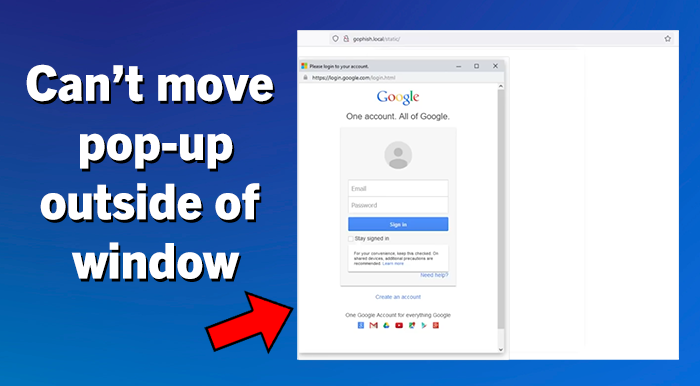
The BitB trick uses hidden code to create a fake pop-up looking window in your browser with a login prompt. Because the fake pop-up is entirely generated, it can include a convincing-looking address bar at the top that displays correct domain names. This trick can easily fool users who are looking at the URL before entering their credentials. For example, the BitB trick could be showing what looks like a pop-up window for a Google login and include the correct google.com address as well as all of the correct graphics and formatting. After entering your credentials, the user may even be redirected and logged into the official website. But through this process, the cybercriminal also collected and saved the user’s login and password information, which they can use themselves later. Most login pages are static single pages and do not typically have their login screen in a pop-up window. One of the best ways to spot this BitB trick is that the pop-up window cannot be moved outside of the original main browser window.

Image showing a pop-up window contained within a browser window and informational text saying "Can't move pop-up outside of window"

Ways to Avoid the BitB trick:

  • For logging into any account, don’t trust a button, page link or email link.
    Instead, navigate to the site’s official website URL in a separate browser tab to login.

  • If you are prompted to enter credentials into a login pop-up window, first check to see if the pop-up window can move outside of the browser window. Essential for the BitB trick, are iframes, which are connected to the underlying browser window and cannot be pulled outside it.

  • It is also recommended to use Two Factor Authentication on any account, when available, to give you an extra layer of protection.

SEO Poisoning

Have you ever searched for something on the internet using your favorite browser search engine and gotten results that are completely wrong? For example, you search for your specific car insurance company’s official website. However, the top results you see may list the name of your car company, but the website URL is not your company’s official website.

These types of results can be caused by Search Engine Optimization (SEO) Poisoning. In this type of attack, cybercriminals employ various methods to manipulate search engine results, attempting to redirect traffic to their malicious websites. On these fake websites, users may be prompted to enter their personal account credentials, which the attackers will steal, or the fake sites may include malware that is unknowingly downloaded to the user’s computer.

To avoid SEO Poisoning:

  • Always visually verify links before clicking. Examine the URL carefully. Look for name misspellings or letter substitutions in the domain name. Double-check that the domain extension (.com, .edu, .gov, etc.) is correct.

  • Be skeptical of the top results. Many of the first results are often “sponsored” results, meaning that they are paid to be listed first, regardless of your actual search results.

  • Go directly to official websites. If you know the URL of the actual website you want, such as Amazon, then type “amazon.com” directly into the browser address bar, rather than searching for “Amazon”.
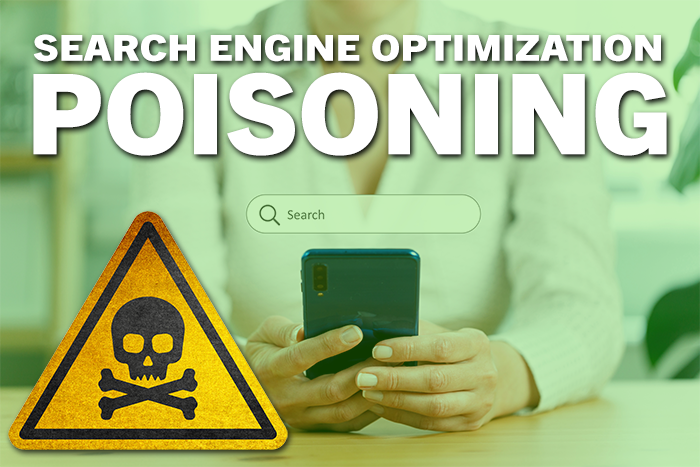
Woman holding phone with text displayed over image saying "Search Engine Poisoning" and a poison symbol.

AI Summarization Vulnerability

Artificial Intelligence (AI) continues to grow in popularity as a tool that can help users do all sorts of things. Unfortunately, cybercriminals understand that and are also using AI for their scams.

One of the common ways that people use AI is to have it summarize content, such as an email, a large document or a spreadsheet. But cybercriminals are taking advantage of that AI usage by embedding hidden and malicious AI instructions in files that are unseen by the user.

For example, a user could receive a lengthy email, and they use AI to summarize the message. But embedded in the email could be a hidden, malicious AI prompt that could force your AI program to search for and read other sensitive emails and documents, which could then be sent to the attacker.

Even documents like an Excel spreadsheet that you ask AI to summarize could contain hidden white text on a white background across multiple sheets, which contain AI task modifications and commands that could hijack your AI’s processes and behavior.

To help avoid falling for this type of scam, users should not open files from people that they do not know, nor open a file that they are not expecting. Also, you should carefully consider what content you have AI summarize or process for you, as well as monitor any AI outputs very closely.

A hooded hacker, masked and cloaked in a dark background, holds artificial intelligence circuitry.

SharePoint File Share Fake

Clemson University users are experiencing an increase in a SharePoint-related cyberattack, like the email pictured below. In this scheme, cybercriminals have likely already compromised a legitimate user and are using the account’s SharePoint site to send a document share email to other users. Sharing files through this method can sometimes circumvent security tools, which could possibly detect these malicious files.

The shared file could be a Word document, a PDF or a similar type of file. The file can contain malware that would infect your computer if you opened it, or it may ask you to log in with your Clemson credentials before you can see the file. This would allow them to steal your login and password information.

To avoid this scam, you should do the following:

  • Always use extra caution before opening any file sent to you, especially if you do not know the sender or if you are not expecting a file.

  • Avoid opening an email attachment file if you see the External Sender banner on any email. Those emails are coming from someone outside of Clemson.

  • Before logging in with your Clemson credentials, you should first verify that the URL has “clemson.edu” as the domain address.

  • If you do receive an email that you are unsure about, please use the Report Phishing button in Outlook, and the CCIT Security Team will be happy to investigate it for you to determine if it is legitimate and safe to open.

Screen shot of email from SharePoint asking to share a file with user. Email has the External Sender banner on it.

Passwords expiring for many Clemson accounts on July 31 to enhance security

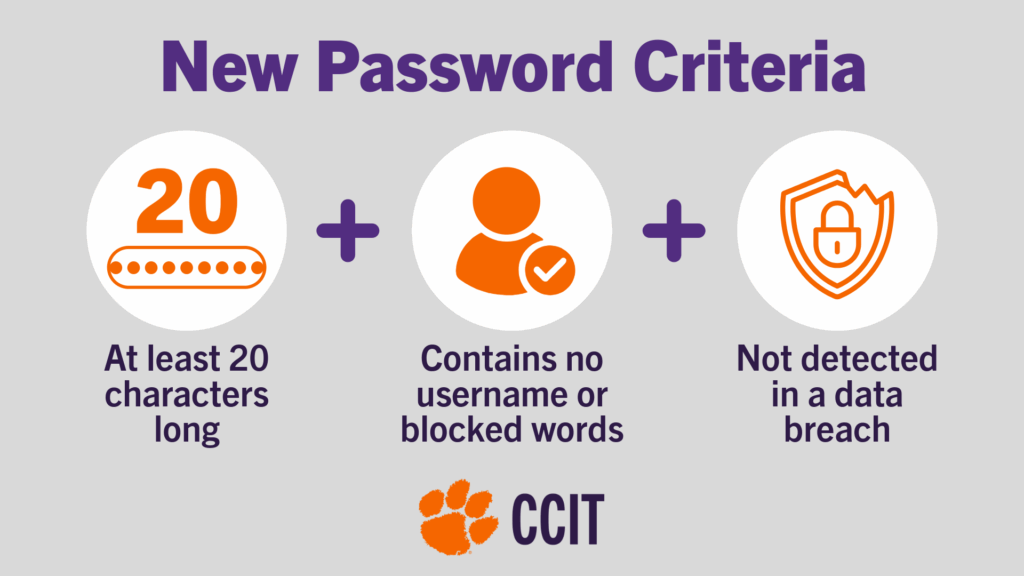
New passwords must be at least 20 characters long, contain no username or blocked words, and can't be detected in a data breach.

To enhance digital security, Clemson Computing and Information Technology (CCIT) is enforcing password expiration for approximately 30,000 Clemson University accounts to help protect data and personal information. While this change will not impact all Clemson users, those who are impacted will receive instructions for the expiration and creation of a new password for their Clemson account. This effort is to strengthen security for accounts that were identified with vulnerable passwords. In the age of artificial intelligence and high performance computing, strong passwords are some of our best defenses against threats or bad actors. 

What to expect

  • CCIT engineers will prompt password expiration for specific accounts on the morning of July 31, 2025. 
  • The identified users will be emailed more detailed information about what to expect. 
  • Users are required to create passwords that meet the new security requirements. 

If you need assistance during the password change process, please contact the CCIT Support Center. Those who are not identified in this round of expiration are also welcome to strengthen their passwords to the more secure passphrase format at any time. 

Report Phishing button change in Microsoft Outlook

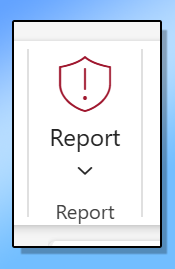
Screenshot of the Report button in Outlook

Clemson University faculty, staff and students using Microsoft Outlook for email can now use the generic Report button to report phishing or junk emails. Reporting an email through this method will still send your email to the Clemson Security Operations Center (CSOC) for review and investigation. The Security Shield Report button has been removed from Outlook to help streamline this process.

But if you need to provide additional information beyond just reporting an email, use the Report Phishing Service through the TigerHub system.

Please contact the CCIT Support Center if you have any questions.