CCIT News and Notices

How to update your preferred first name in Microsoft 365 

As Microsoft updates are applied, some Clemson University faculty and staff may notice changes to their names on the Microsoft 365 accounts or in Outlook. To modify or revert your first name back to a preferred first name, there are a few steps to follow:

  1. Go to: my.clemson.edu
  2. Click: the top-right profile icon and select “log in”
  3. Log in: using your Clemson credentials
  4. Click: on your profile picture in the upper right corner
  5. Select: “My Profile”
  6. Click: “Set a preferred name”
  7. Review: the information, select “I Agree,” enter your preferred name (32 characters or less, alpha characters, space, or hyphen only), and select “Save”

Please note that these changes may take a day to update across the systems. If you have any additional issues or questions, contact your area’s IT consultant or the CCIT Support Center.  
Accessing Kronos Beginning September 8, 2025 

Following a recent update to Kronos, University users will now need to use a new link to log in. The new Kronos URL, effective September 8, 2025, is: https://kronos.app.clemson.edu/

If you currently have the old Kronos link saved in your bookmarks, please update it to the new URL.

For Kronos mobile app users:
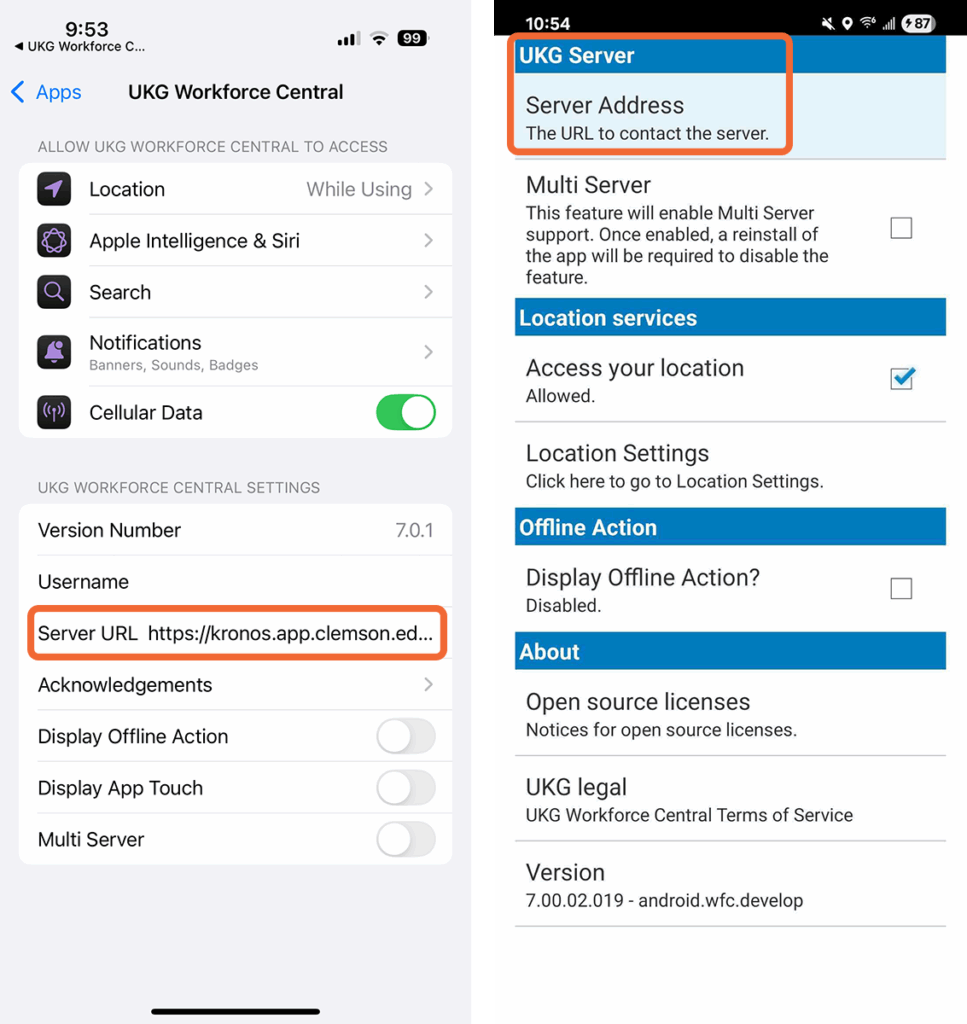
If you use the Kronos mobile app (also known as UKG Workforce Central), follow the instructions below to update the server URL within the app settings to the new URL. Open the UKG Workforce Central settings, remove the old server URL and replace it with: https://kronos.app.clemson.edu/wfc

From an iPhone (pictured left):

  1. Open Settings
  2. Select Apps
  3. Select UKG Workforce Central
  4. Paste https://kronos.app.clemson.edu/wfc in the Server URL field.

From an Android phone (pictured right):

  1. Open the UKG Workforce Central app
  2. Tap on the three vertical dots on the bottom menu bar
  3. Select Settings
  4. Select Server Address
  5. Paste https://kronos.app.clemson.edu/wfc in the Server Address field
  6. Select ‘OK’
Kronos app settings for iPhone (left) and Android (right)

Please note that the app may take a few minutes to load after changing the Server URL. Follow these instructions if you need to set up the Kronos app on your device for the first time.

If you are still having issues accessing Kronos via web or mobile, contact the CCIT Support Center or your area’s IT consultant.
