
Clemson has recently activated the new version of the Turnitin integration in Canvas. We will look at all of the major changes and what to expect from the updated version. Assignments from the old integration should be automatically converted to the new integration. If any assignments are missing, please contact us, and we can get that sorted out for you.
Creating a Turnitin Assignment
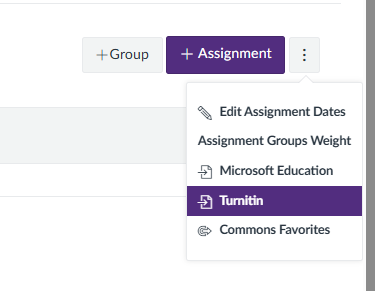
There are two different ways to create a Turnitin assignment. First, in the Assignments tab of your course, click the Assignment Settings button. Then, click Turnitin from the dropdown menu. This will open a window where you can create Turnitin assignments.
Here, you can upload a template, which will be automatically excluded from the similarity score. Additionally, you can upload a Turnitin rubric. However, this rubric will only exist in Turnitin and not in Canvas.
After creating the assignment, you will see it in the Assignments tab in your course. If you click on it, you will see the familiar Turnitin inbox. The UI has been updated, but it still contains the same information. Here, you can also make changes to the assignment by pressing the Edit button.
Feedback Studio
In Feedback Studio, you can view student submissions in Turnitin. You can see their similarity score, AI writing score, and anything else the system flagged. In the new update, the location of the AI writing score has been moved to the top of the page. The AI writing score can help determine whether a submission was written or paraphrased using AI. Blue highlighting represents AI writing, and purple highlighting represents AI paraphrasing.
The AI writing score should be used as additional information and should not solely determine whether a student has violated academic integrity standards. No AI detection tool is fully reliable, so it should not be used as the sole basis for academic integrity decisions. Instead, it should be treated as a starting point. The FAQ link in Feedback Studio answers a variety of questions about how the detection works and what it detects.
The flags tool determines whether something unusual is going on with the submission, such as suspicious characters or hidden text that may be trying to interfere with the AI detector. However, the tool can produce false positives, so make sure to review any flags carefully.
Grading Documents
If you set up Turnitin assignments using the method discussed previously, you will no longer be able to use SpeedGrader to grade them. Instead, grading will be done in Feedback Studio using the grade box at the top of the page. It operates the same way as SpeedGrader, just in a new location.
Second Method for Creating a Turnitin Assignment
Another way to create a Turnitin assignment is by clicking the + Assignment button in the Assignments tab. When creating an assignment with a file submission required, you will now be able to add a document processing app after the Assign Access section. Turnitin will be the only app option. Your assignment will then be created with Turnitin.

Using this second method, you can grade the assignments as normal in SpeedGrader.
If you are interested in learning more, you can find the recorded quick hits session here!

Upcoming Events
Workshop Wednesday: Designing Effective Rubrics in Canvas
May 27th, 1:30 PM-2:30 PM
Facilitated by Digital Learning Strategist James Butler
Join this workshop to learn about designing effective rubrics! Drawing on best practices in online teaching, this training will offer multiple approaches to consider when designing rubrics for various assignments. This training will also cover how to build a rubric in Canvas and attach it to an assignment for clear and convenient grading.
Register for Workshop Wednesday!
WCAG 2.1: What does it mean for your course?
June 3rd, 1:30-2:30 PM
Facilitated by Browning Blair
Join this session to learn about the new federal standards for online accessibility! This training will introduce you to WCAG 2.1 AA, the new legal standard for digital accessibility! You’ll learn how to check the accessibility of your own Canvas course and online teaching materials. When registering, please include any questions you have about this training topic.
Clemson Online Summer 2026 Events Calendar
Review our Summer 2026 Events Calendar to see what Online Instruction Development opportunities await!

We have a robust lineup of topics and live training formats to support your use of Canvas and other e-learning tools. Topics cover demonstrations of using Kaltura, engaging your students, and workshops to get your Canvas site ready to teach!
All of our live training is recorded. Registrants will automatically receive a link to that day’s video after it has been processed.
Contact Millie Tullis with any questions regarding these sessions.

Clemson Online – Where Tech and Teaching Meet
