As Microsoft updates are applied, some Clemson University faculty and staff may notice changes to their names on the Microsoft 365 accounts or in Outlook. To modify or revert your first name back to a preferred first name, there are a few steps to follow:
Click: the top-right profile icon and select “log in”
Log in: using your Clemson credentials
Click: on your profile picture in the upper right corner
Select: “My Profile”
Click: “Set a preferred name”
Review: the information, select “I Agree,” enter your preferred name (32 characters or less, alpha characters, space, or hyphen only), and select “Save”
Please note that these changes may take a day to update across the systems. If you have any additional issues or questions, contact your area’s IT consultant or the CCIT Support Center.
If you currently have the old Kronos link saved in your bookmarks, please update it to the new URL.
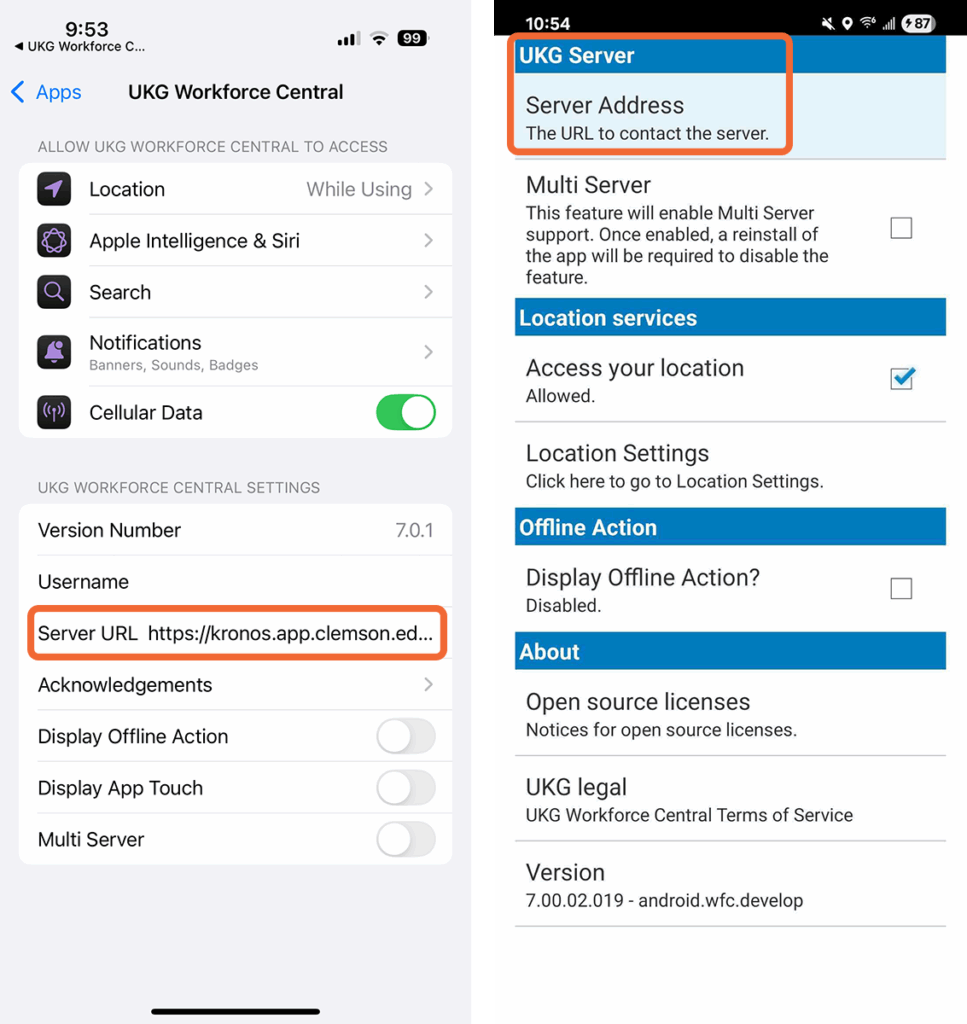
For Kronos mobile app users: If you use the Kronos mobile app (also known as UKG Workforce Central), follow the instructions below to update the server URL within the app settings to the new URL. Open the UKG Workforce Central settings, remove the old server URL and replace it with: https://kronos.app.clemson.edu/wfc
From an iPhone (pictured left):
Open Settings
Select Apps
Select UKG Workforce Central
Paste https://kronos.app.clemson.edu/wfc in the Server URL field.
From an Android phone (pictured right):
Open the UKG Workforce Central app
Tap on the three vertical dots on the bottom menu bar
Select Settings
Select Server Address
Paste https://kronos.app.clemson.edu/wfc in the Server Address field
Select ‘OK’
Please note that the app may take a few minutes to load after changing the Server URL. Follow these instructions if you need to set up the Kronos app on your device for the first time.
Teams of CCIT employees are excited to help new first-year students ensure their laptops are ready for a new semester and academic year. On Friday, August 15 and Tuesday, August 19, students can bring their laptops to workshop sessions for their types of laptops (Windows or macOS). These hour-long sessions will begin at the top of each hour from 10 a.m. through 4 p.m. both days, with the last workshop starting at 3 p.m. each day. These workshops will inform students about CCIT’s software offerings and cover basic set-up topics such as connecting to eduroam for wifi, accessing Adobe products, ensuring their email accounts are working and getting answers to any other questions. Students must register in advance to secure their spot and arrive on time at the start of each session.
To enhance digital security, Clemson Computing and Information Technology (CCIT) is enforcing password expiration for approximately 30,000 Clemson University accounts to help protect data and personal information. While this change will not impact all Clemson users, those who are impacted will receive instructions for the expiration and creation of a new password for their Clemson account. This effort is to strengthen security for accounts that were identified with vulnerable passwords. In the age of artificial intelligence and high performance computing, strong passwords are some of our best defenses against threats or bad actors.
What to expect
CCIT engineers will prompt password expiration for specific accounts on the morning of July 31, 2025.
The identified users will be emailed more detailed information about what to expect.
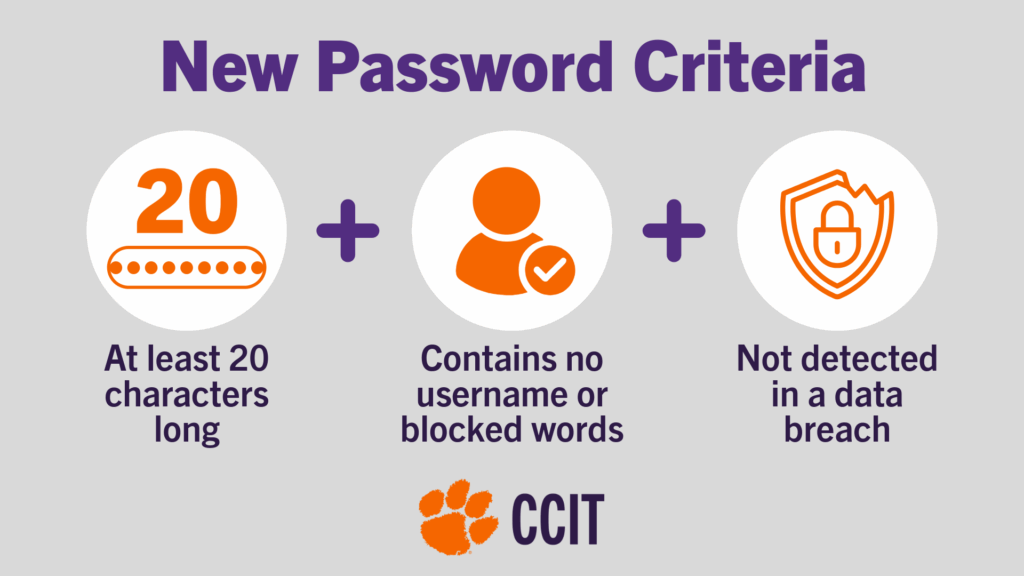
Users are required to create passwords that meet the new security requirements.
If you need assistance during the password change process, please contact the CCIT Support Center. Those who are not identified in this round of expiration are also welcome to strengthen their passwords to the more secure passphrase format at any time.
As Microsoft discontinues support for Windows 10 later this year, all University-owned devices running Windows operating systems are forced to upgrade to Windows 11. To ensure you continue to receive important security updates, performance enhancements, and ongoing support, CCIT engineers will be upgrading all University-owned devices currently running Windows 10 to Windows 11.
What This Means for You:
Automatic Upgrade: CCIT will handle the upgrade process for you, minimizing any disruption.
Improved Security & Performance: Windows 11 is designed with modern security features and performance improvements to keep your systems running smoothly.
New Features: Enjoy a refreshed interface, productivity enhancements, and better support for hybrid work environments.
Upgrade Timeline:
A phased approach to upgrades begins on May 15, 2025 and will continue on a weekly basis through August 28. Impacted users will receive an email from CCIT with their scheduled upgrade window.
If you have any questions or would like to discuss your upgrade timeline, feel free to reach out to your local IT Consultant, or email ithelp@clemson.edu.
Resources to Help You Prepare: Here are some helpful resources about Windows 11 and the transition:
Spring cleaning isn’t just for your home—your computer needs a refresh too! Clearing out old files, updating software and decluttering your desktop can improve performance, enhance security and free up valuable space. Follow the tips below to clean up your digital devices and start the season more organized!
Declutter your desktop, sort files into folders and rename files logically so you can quickly locate what you need.
Free up space on your computer
A cluttered hard drive can slow down your system. Delete unwanted files, empty your recycle bin, clear your browser cache and delete temporary downloads to free up storage space on your computer.
Update software
Keeping your programs up-to-date ensures your computer stays secure and runs smoothly. Software updates often include important security patches that protect your system from vulnerabilities. Make sure your operating system and applications are set to update automatically or check for updates regularly.
Remove unused software
Unused programs take up storage and can slow down your device. Uninstall any applications you no longer use, freeing up space and improving your computer’s performance.
Taking the time to clean up and organize your digital space can boost efficiency, protect your data and extend the life of your device. Start your spring cleaning today and enjoy a faster, more secure computer! Contact the CCIT Support Center if you need assistance with any of these spring cleaning tech tips.
Welcome to CCIT This Week, where we give you a rundown of news, tips, upcoming maintenance and more. This page will be updated throughout the week. Follow us on Instagram, Facebook and X (formerly Twitter) for information and timely updates. Check outage and maintenance information on the CCIT Status Page.
News
The CCIT Support Center offers real-world experiences and skills for students! Clemson University students, faculty and staff rely on technology every day, and the Clemson Computing and Information Technology (CCIT) Support Center is often their first stop when issues arise. Students working in the Support Center develop professional skills while still studying full-time, which differentiates them from others when they prepare for the job market after graduation.
The Clemson VPN login process has been changed. On Friday, February 14, CCIT upgraded the virtual private network (VPN), changing the login process. When connecting to the VPN, rather than seeing a pop-up that requires you to enter your Clemson credentials plus the word “push,” you will now be directed to the standard Clemson login page and Duo prompt.
The next Research Computing and Data live workshop is a two-part series on advanced deep learning in Pytorch! Join the RCD team on March 25 and 27 at 2 p.m. for these live sessions on advanced PyTorch development topics including model fine-tuning, using multiple GPUs during training, experiment tracking, and more. Registration is required; open to all Palmetto users. Participants must have basic familiarity with Python programming and a good grasp of Pytorch fundamentals.
The popular GIS Fundamentals Workshop Series continues! These workshops have been streamlined to cover six critical topics that guarantee coverage of all the GIS fundamentals. The next workshop topic will be “Intermediate Spatial Analysis” on Friday, March 14. These hybrid workshops are free and open to all Clemson students, faculty, and staff; no previous experience is necessary! Sessions will be delivered both online and in person every other Friday from 1:30 to 4:30 p.m. Note: Attendance at the first two workshops is mandatory to participate in the remaining sessions.
Get ready to get creative at Makerday XVIII! Makerday is Clemson’s largest show-and-tell event, promoting creativity, innovation, and design. It allows students, clubs and faculty to show off the things they’ve made this semester, as well as interact with stations to make buttons, stickers, t-shirts and more. Drop-in to Makerday on Tuesday, April 15 between 3 to 6 p.m. in the Watt Family Innovation Center atrium.
Follow these tech tips to help you stay safe during Spring Break! Spring Break is right around the corner and itineraries may be well underway. Now more than ever, staying safe on trips extends far beyond applying enough sunscreen, staying hydrated and moving in groups. In fact, technology can play a key role in keeping you safe, especially when so many of our plans involve our smartphones and different applications.
Spring Break is right around the corner and itineraries may be well underway. Now more than ever, staying safe on trips extends far beyond applying enough sunscreen, staying hydrated and moving in groups. In fact, technology can play a key role in keeping you safe, especially when so many of our plans involve our smartphones and different applications.
Here are some quick reminders to ensure you can stay tech safe this Spring Break too:
Use Clemson VPN when connecting to “unsecured” wifi networks. This will keep others from potentially accessing what you are browsing, especially with transactions.
Seek out eduroam networks if traveling near another campus community. These are more secure and you will automatically connect to them if you use those devices on Clemson’s eduroam. There are over 33,000 eduroam connections worldwide!
Do not plug your cellphone charger directly into a USB port at the airport or on transportation. Always use a charger block and an outlet.
Passwords protect all of your devices. Do not use passwords that are easily breakable either. 1234 is a good way to have your information 123-gone. While sharing is caring in most scenarios, keep those passwords to yourself.
Disable Bluetooth when not in use. It may be tempting to keep it on all the time, but this is one way to prevent unwanted device pairings/connections.
Do not fall for phishing scams or too-good-to-be-true deals for rentals of any kind. Ensure you are using a secure, legitimate service website. Cybercriminals know that Spring Break happens in March, too.
Avoid sharing your exact location on social media. Be mindful that people may be able to locate you and while it may be tempting to share exactly where you are and the cool stuff you are doing on your trip, consider how it impacts your safety and the safety of others around you.
We wish all of our Tigers a happy, healthy, and safe Spring Break. Take care of yourselves and know that we are here to support you if needed. To see the adjusted Spring Break CCIT Support Center hours, visit this page.
On Friday, February 14, 2025, CCIT will upgrade the virtual private network (VPN) that will change the login process. Once this change has been implemented, your login process will change in the following way:
When connecting to CUVPN, rather than seeing a pop-up that requires you to enter your Clemson credentials plus the word “push,” you will be directed to the standard Clemson login page and Duo prompt.
Old CUVPN Login
New CUVPN Login
If you have issues logging in after this change is implemented, CCIT recommends that you clear your cache and cookies. For more information on how to clear your cache and cookies, the CCIT Knowledge Base offers helpful instructions. If you have any further questions or concerns, reach out to the CCIT Support Center.
Since it is internship and job season, the Office of Information Security encourages Clemson University students to practice vigilance as they navigate emails and job opportunities. Internship and job scam emails are common and it is important to take a few steps to verify key information before responding or clicking links.
Here are some quick tips to stay safe:
Check the sender’s email address. Is it from a legitimate organization or does it look suspicious?
Never click on links in emails that look suspicious.
Do not provide your Clemson or personal passwords or account information to anyone.
Watch for urgency cues. While job offers do need prompt responses, scam emails will often ask for immediate replies to get you to act fast.
Even if an email looks like it is coming from someone at Clemson, always verify the person sending the offer by using the my.Clemson Directory. Clemson faculty will not typically reach out to students with internships or job offers in this manner.
Report emails that might be scams (phishing) by forwarding them to phishing@clemson.edu or use the Report Phishing button in Outlook.