To help support commonly requested embeds that are not allowed directly in blogs.clemson.edu sites due to network blog security settings, we’ve created three custom blocks for you to use. These restrictions are related to WordPress roles and capabilities (such as unfiltered_html), which limit iframe usage in standard editors. You can read a bit more about unfiltered_html permissions here: https://wordpress.org/documentation/article/roles-and-capabilities/#unfiltered_html
* This post has been updated to show new steps to get Kaltura embeds to work properly. Big thanks to Ben Godfrey for helping me troubleshoot this block!
Let’s get to it!
You can find these blocks in the “Clemson Blocks” category within the block editor.
Kaltura Video Embed
Step 1: Click the Kaltura Embed block.
Step 2: Enter the Kaltura Video ID.
Go to your Kaltura media library
Select your video
Click the Share tab
Click the Embed tab
Copy the entire embed code
Paste the embed code into the Kaltura Embed URL or ID input
Note: the block will automatically extract the correct URL info from your embed code.
Step 3: Enter the Kaltura Video Title (required for accessibility).
Tableau Dashboard Embed
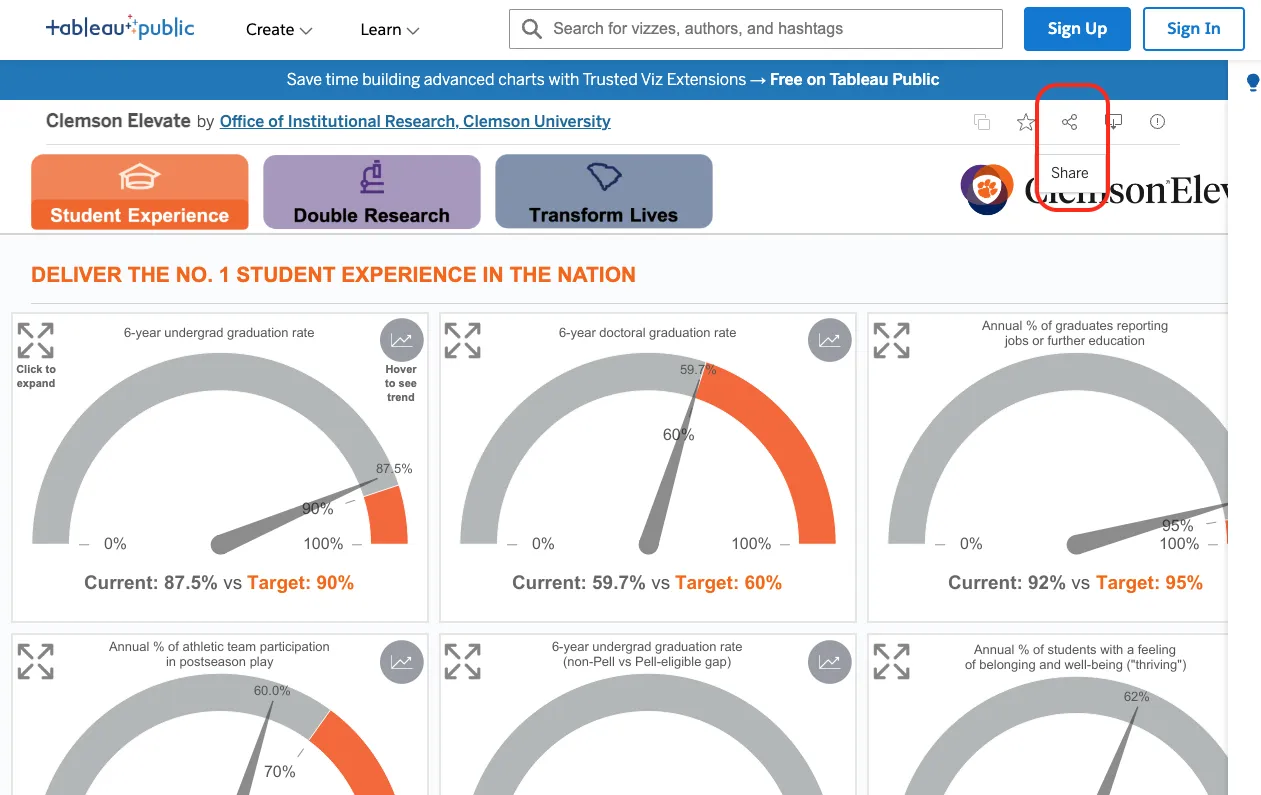
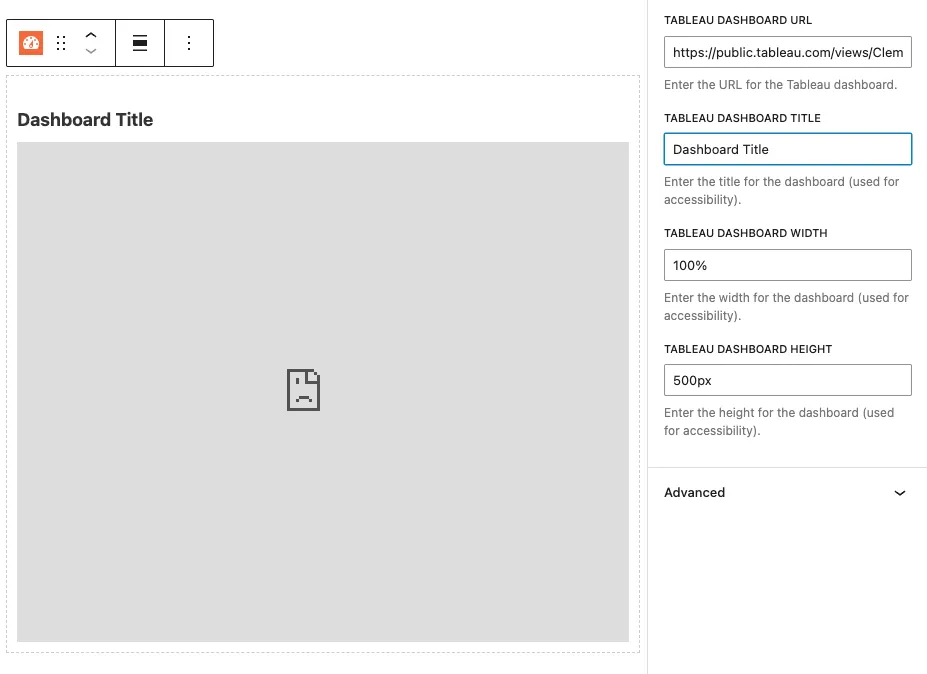
Step 1: Enter the Tableau Dashboard URL.
Open a public Tableau dashboard
Click the Share button
Click Copy Link
Step 2: Fill out the remaining fields:
Dashboard Title (required for accessibility)
Width
Height
Note: Tableau dashboards will not display inside the WordPress editor due to browser security restrictions:
Refused to display 'https://public.tableau.com/' in a frame because it set 'X-Frame-Options' to 'sameorigin'.
This is expected behavior. The dashboard will display correctly in preview and after publishing.
ArcGIS Experience Dashboard Embed
Step 1: Enter the ArcGIS Experience Dashboard URL.
Open a public ArcGIS Experience dashboard
Copy the URL from your browser’s address bar
Step 2: Fill out the remaining fields:
Dashboard Title (required for accessibility)
Width
Height
Summary
These custom blocks make it easy to safely embed external content while staying within WordPress security guidelines. Always include descriptive titles for accessibility and preview your post to confirm everything displays correctly.